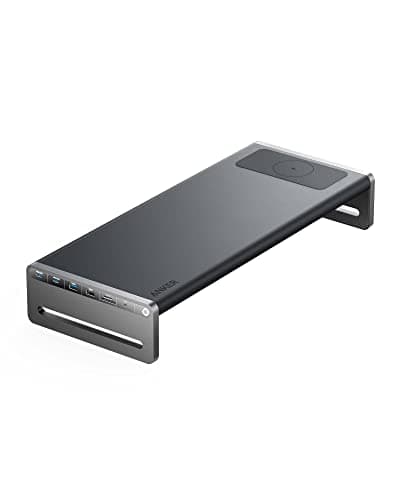
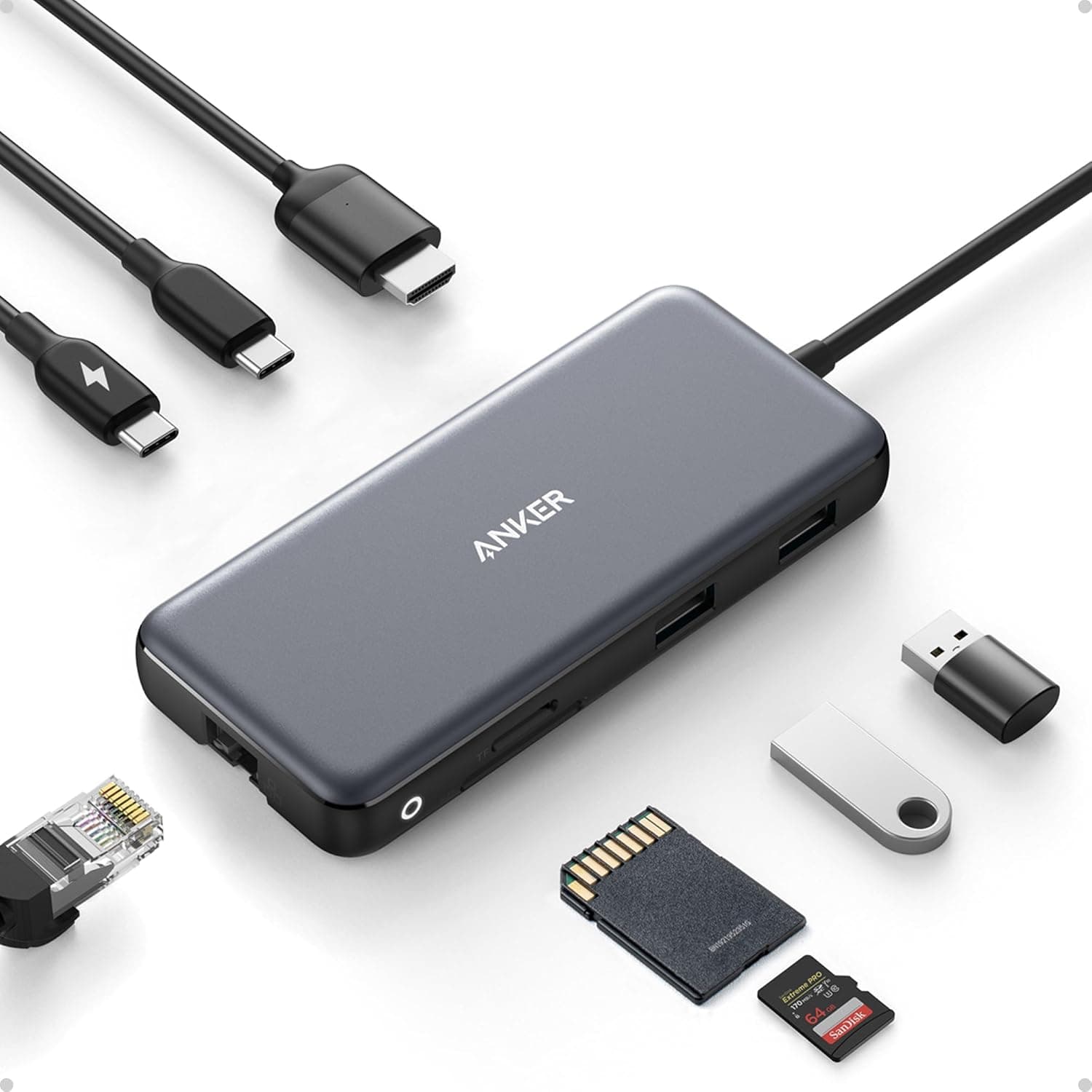
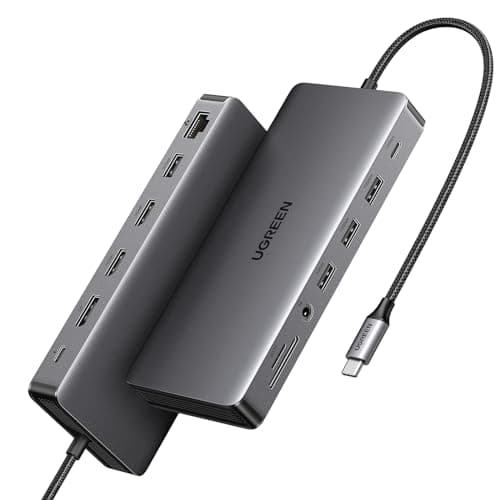
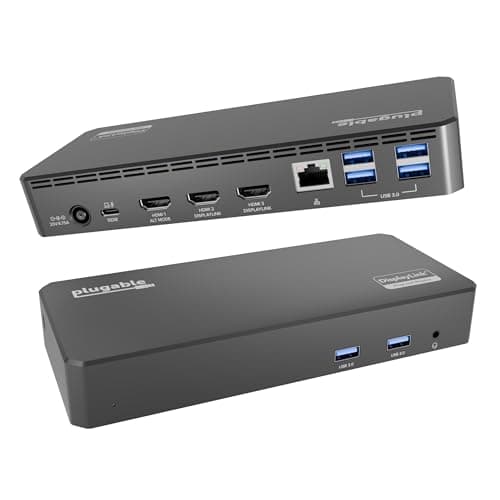
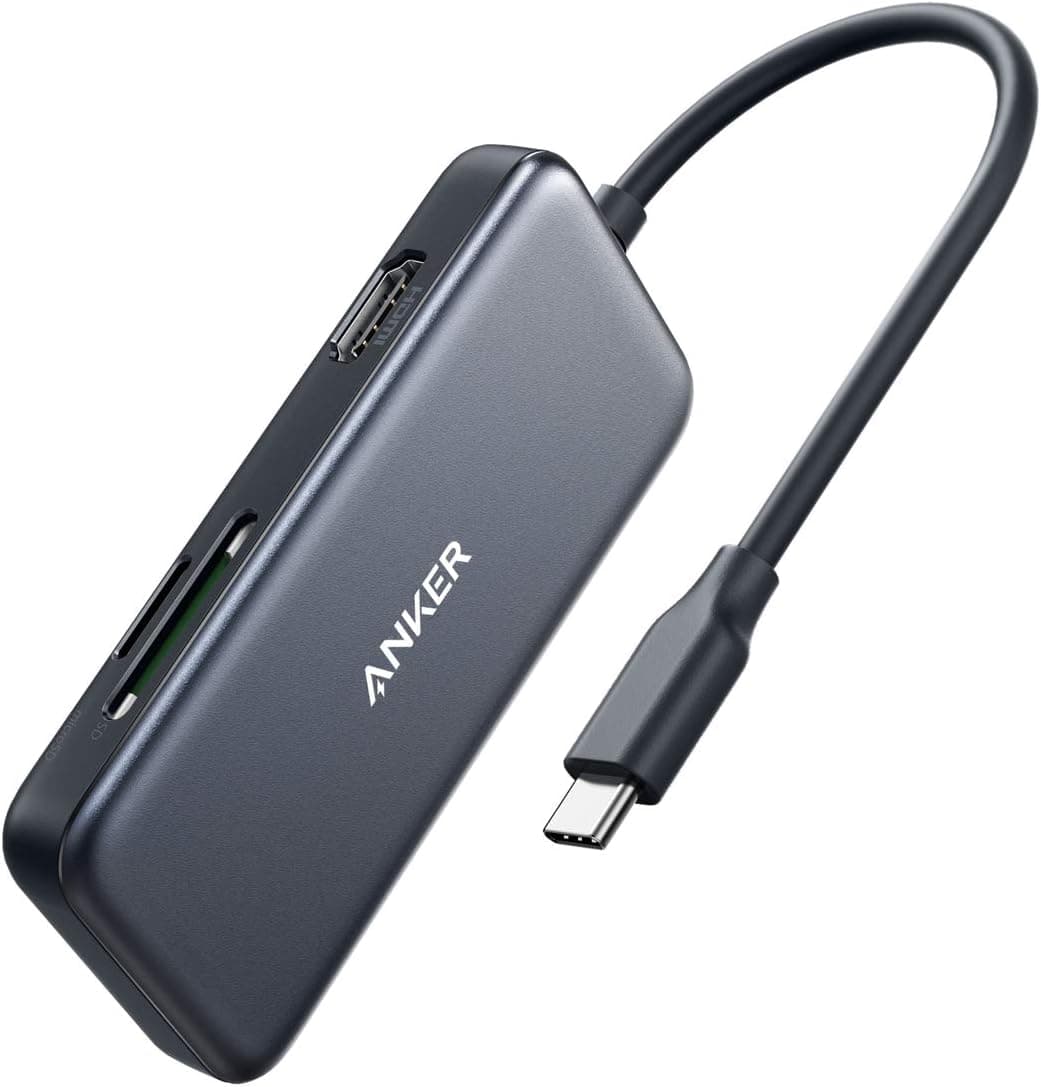
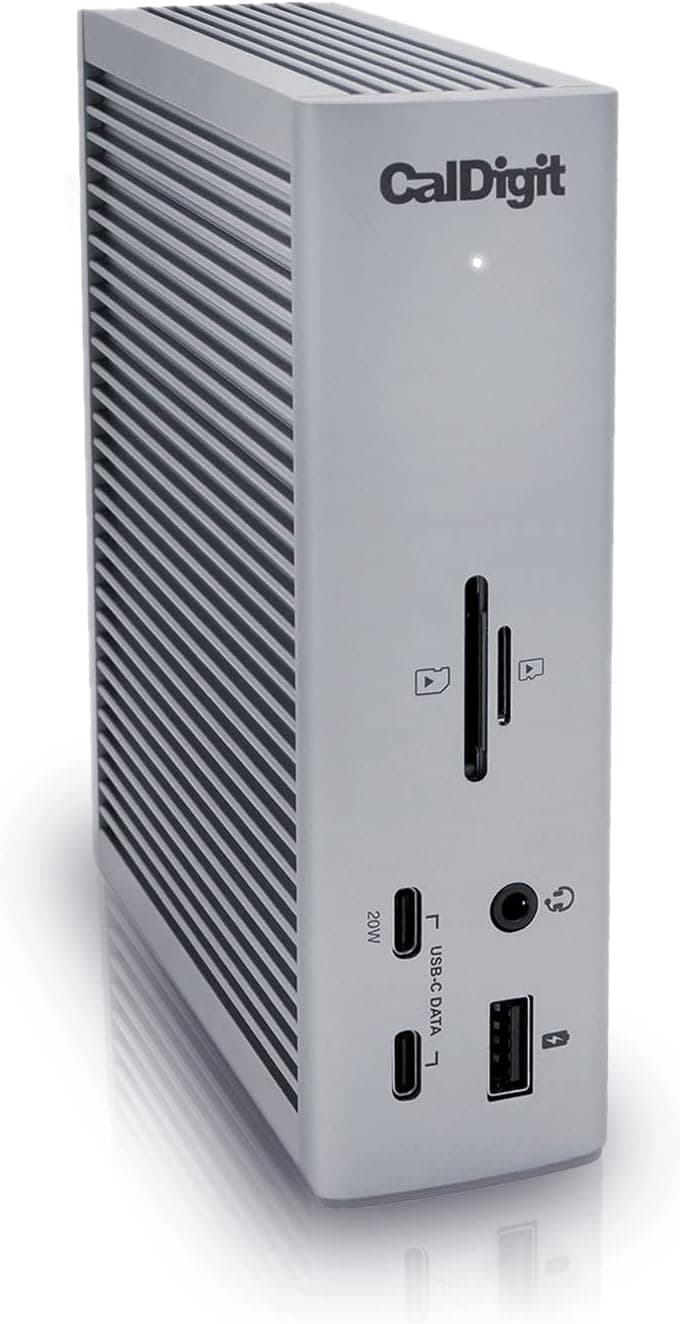
For most people, a standard USB-C hub is all you need. A Thunderbolt dock like the CalDigit TS4 only makes sense if you require multiple high-speed Thunderbolt peripherals, need to daisy-chain devices, or want to drive demanding multi-monitor setups at the highest resolutions. A good USB-C hub in the $35-90 range handles a single external monitor, USB peripherals, charging, and card reading without issue. Thunderbolt docks cost three to four times more and require a Thunderbolt-equipped laptop to deliver their full capabilities.
Some warmth during operation is completely normal and expected. USB-C hubs route significant power and data through compact circuitry, generating heat in the process. Aluminum-shelled hubs may feel warm to the touch but are actually managing heat better than plastic hubs that trap it inside. If your hub becomes uncomfortably hot or starts disconnecting devices during heavy use, that indicates a thermal throttling issue and you should consider upgrading to a hub with better thermal design. Avoid placing hubs on soft surfaces like fabric or directly against your laptop where heat cannot dissipate.
It depends on your MacBook model and the hub. M1 and M2 MacBook Air and base MacBook Pro models natively support only one external display over USB-C, regardless of how many HDMI ports your hub has. To drive multiple monitors from these machines, you need a hub that uses DisplayLink technology and its companion software driver. M1 Pro, M1 Max, M2 Pro, M2 Max, M3 Pro, M3 Max, M4 Pro, and M4 Max MacBook Pro models support multiple displays natively. Always check your specific Mac's display support specifications before purchasing a multi-display hub.
A well-designed USB-C hub should not noticeably affect your laptop's performance. The hub uses your laptop's USB-C bandwidth to communicate with connected devices, and modern USB-C ports provide more than enough bandwidth for typical peripherals. However, if you are simultaneously running a 4K display, transferring large files to external storage, and using Ethernet for a video call through a single USB-C port, you may notice slightly reduced speeds on individual connections due to bandwidth sharing. This is a physical limitation of the USB-C interface, not a defect in the hub.
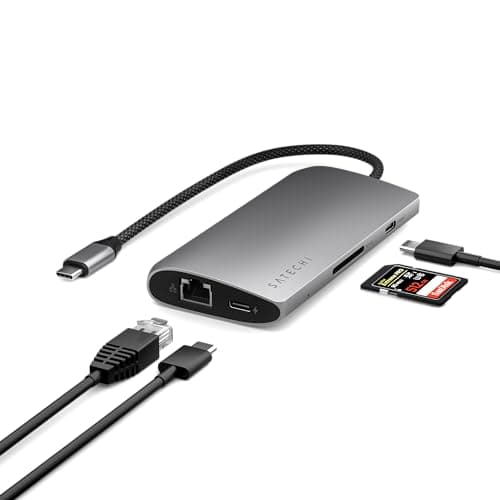
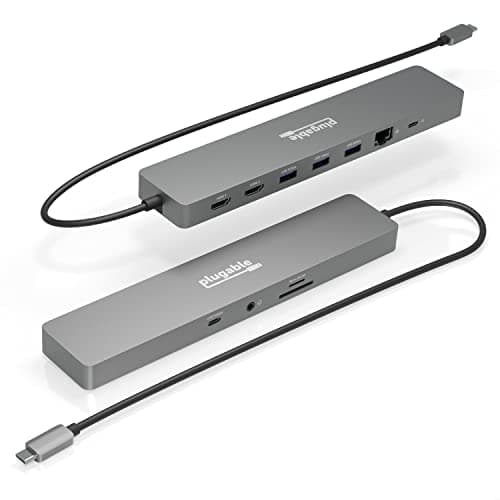
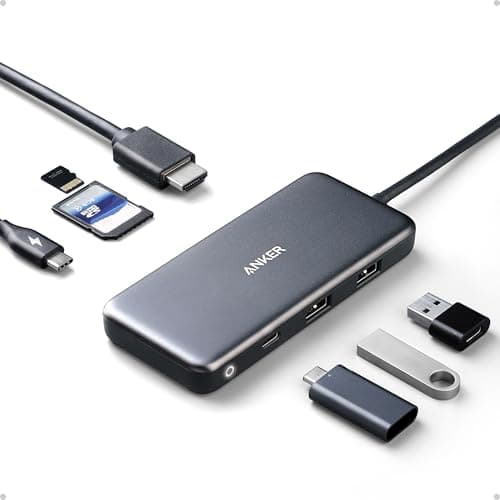
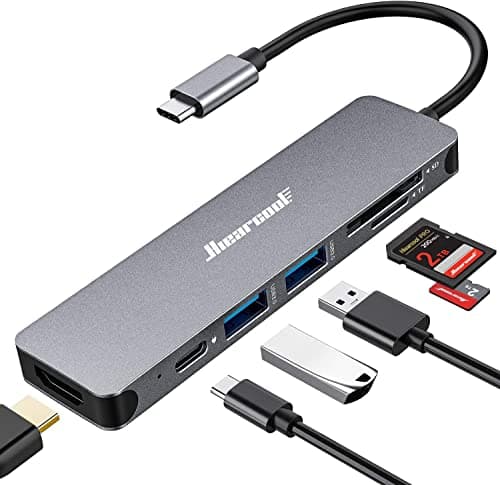
Budget depends entirely on your use case. For occasional travel and basic port expansion with a single monitor, a $15-35 hub from Anker or Hiearcool covers the essentials reliably. For a permanent desk setup with dual monitors and Ethernet, the $50-100 range from brands like UGREEN, Plugable, and Satechi delivers a meaningful upgrade in build quality, port count, and display capabilities. Full Thunderbolt docking stations in the $150-400 range are only worth the investment if you use Thunderbolt peripherals, need triple displays, or require professional-grade reliability for mission-critical workflows.
Most USB-C hubs are universally compatible with any laptop that has a USB-C port supporting data and display output. However, there are important caveats. Some budget laptops have USB-C ports that only support charging and data but not video output, which means an HDMI hub will not produce a display signal. Thunderbolt docks require a Thunderbolt port to unlock their full capabilities. Chromebooks, iPads, and Android tablets have varying levels of USB-C hub support depending on the specific model and operating system version. When in doubt, check your device's USB-C port specifications before purchasing.

 1/5
1/5